Introduction
 Photo by Maxim Landolfi on Pexels
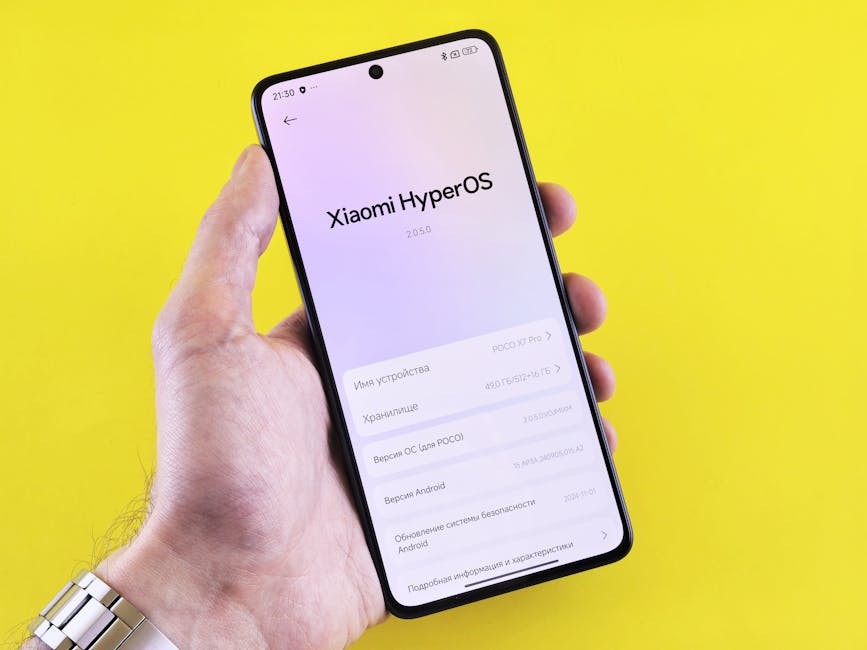
If you’re a Xiaomi user, you’ve probably seen the slick demos of HyperOS Interconnect. Dragging photos from phone to PC, copy-pasting across devices—it looks like magic.
But then reality hits: “Requires a Xiaomi Laptop.”
As someone who loves their custom-built PC (and refuses to switch to a laptop just for one feature), I felt that pain. But here’s the secret: You don’t need a Xiaomi laptop.
In 2026, the community has cracked the code. Today, I’m going to show you exactly how to get this ecosystem envy-inducing feature working on any Windows PC, and more importantly, how to keep it stable.
1. Why Bother? (It’s More Than Just Mirroring)
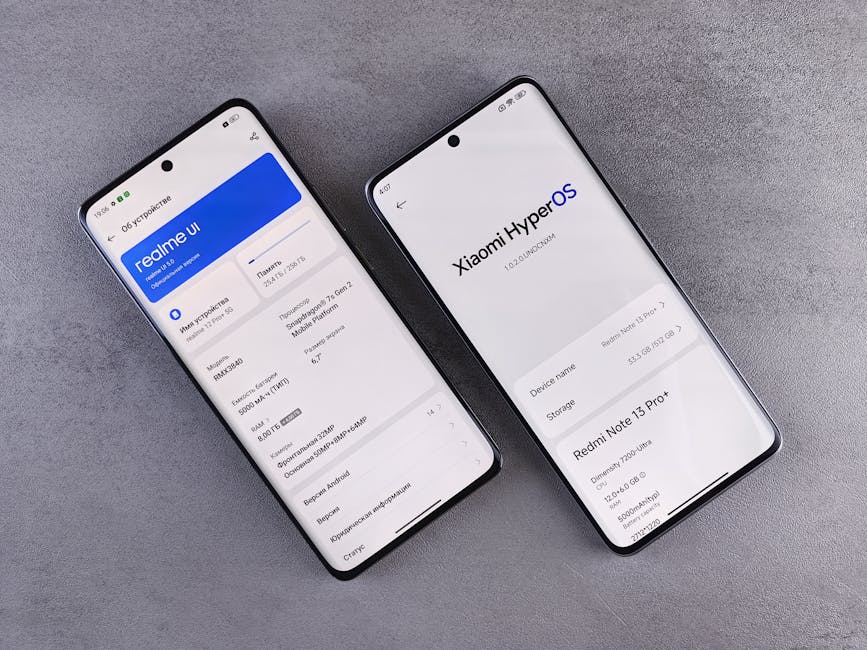 Photo by Andrey Matveev on Pexels
Is it worth the hassle? Absolutely.
- Universal Clipboard: Copy 2FA codes on your phone, paste them into your browser on PC instantly.
- Drag-and-Drop: Transfer photos and documents without cables or cloud uploads.
- Notification Relay: Respond to WhatsApp or Telegram messages directly from your desktop.
It effectively turns your PC into a seamless extension of your phone.
2. The Official “Rules” (That We’re About to Break)
 Photo by Andrey Matveev on Pexels
Xiaomi officially states you need:
- Phone: Xiaomi/Redmi/POCO device with HyperOS (Android 14+)
- PC: Xiaomi Book / Redmi Book
- Account: Same Mi Account on both
- Network: Wi-Fi and Bluetooth enabled
We are going to bypass the “Xiaomi PC” requirement.
3. The Workaround: Running on Any Windows PC
To make this work on your Dell, Lenovo, HP, or custom rig, you need a specific version of Xiaomi PC Manager and a patch file.
Hardware Prerequisites
Don’t ignore these, or you’ll experience lag.
- OS: Windows 10 (1903+) or Windows 11
- Wi-Fi Card: Must support 5GHz. This is non-negotiable for low latency.
- Bluetooth: 4.2 minimum, 5.0+ recommended.
- Drivers: Update your Intel/Realtek drivers to the absolute latest.
The “wstapi32.dll” Method
The magic lies in a file named wstapi32.dll.
- Download Xiaomi PC Manager: version 4.0 or newer is recommended.
- Get the Patch: Search for the
wstapi32.dllpatch on trusted forums like XDA or GitHub. - Install: Place the
.dllfile into the installation directory of Xiaomi PC Manager.
Disclaimer: This involves modifying system files. Proceed at your own risk.
4. Troubleshooting: “Device Not Found”
You installed it, but your phone isn’t showing up? This is the #1 complaint in the US/Global community.
The “Same Wi-Fi” Myth
Your PC and Phone must be on the exact same subnet.
- If your PC is on Ethernet and your phone is on Wi-Fi, it might work, but it’s hit-or-miss.
- Pro Tip: For the initial connection, disconnect Ethernet and connect your PC to the same Wi-Fi network as your phone.
The Global vs. CN ROM Conflict
This is a huge issue for importers.
- Scenario: You have a Xiaomi 14 Ultra (Global ROM) but downloaded the Chinese version of PC Manager.
- Result: They often won’t talk to each other due to server mismatches.
- Fix: Ensure you are using a Global-patched version of the PC Manager, or set your phone’s region to match the software (though this can affect other apps).
Conclusion
HyperOS Interconnect allows you to build your own “Apple Ecosystem” experience without the Apple Tax or hardware lock-in. It requires a bit of tinkering, but the productivity boost is undeniable.
Give it a shot on your current rig before you go out and buy a new laptop!